Follow these steps to fully activate referrals in SiteVibes, configure rewards, and add the Refer-a-Friend widget to your referral landing page.
1. Navigate to Loyalty Settings
Click Loyalty in the left navigation.
Select Programs.
Click Settings.
2. Enable the Referral Program
Open the Referrals tab.
Turn Referral Program Status to ON.
Enter your Referral Landing Page URL (example: https://yourstore.com/referral).
Click Update, then confirm with OK.
3. Configure Referral Rewards
You will set up two rewards:
Referring Customer Reward – What your existing customer earns.
Referred Customer Reward – What the new customer receives.
Available reward types
When creating a reward, you may choose:
Amount discount
Percentage off
Free shipping
Free product (Add-On)
Points Reward
A. Setting the Referring Customer Reward
In the Referrals section, find Referring Customer Reward.
Click Change Reward.
Select the reward type.
Fill out the reward fields (title, value, minimum spend, expiration, etc.).
Click Submit, then OK.
B. Setting the Referred Customer Reward
Find Referred Customer Reward.
Click Change Reward.
Select the reward type.
Enter the value and settings.
Click Submit, then OK.
4. Add the Refer-a-Friend Widget to Your Referral Landing Page
Your referral landing page must include the SiteVibes widget so customers can send referrals and share their referral link.
A. Enable the Widget
Go to Loyalty → On-Site Modules.
Open Referrals Module.
Toggle Enable Refer a Friend Widget to ON.
You will now see a live preview of the widget on the right side.
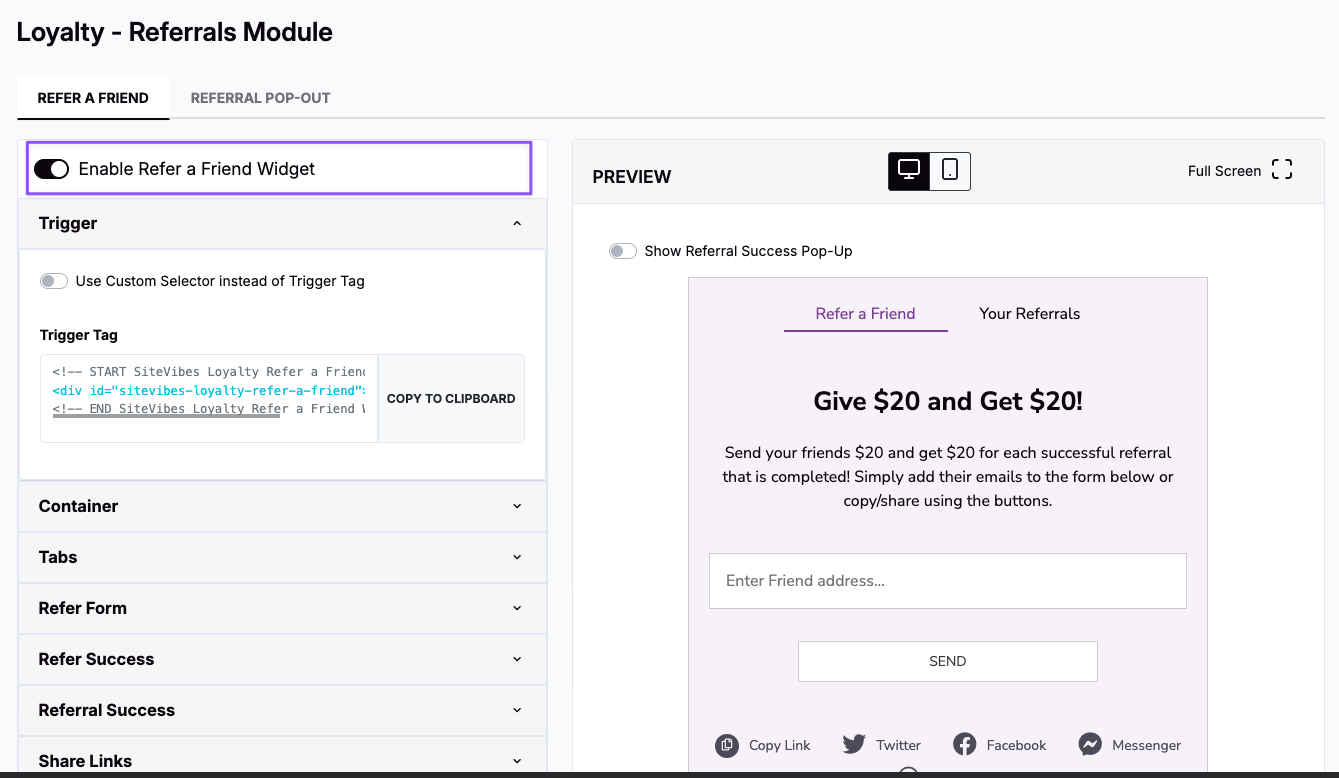
B. Insert the Trigger Tag Into Your Referral Page
By default, SiteVibes uses a trigger tag — a small piece of HTML — that you add to the page where the widget should appear.
Locate the Trigger Tag section.
Click Copy to Clipboard.
Example snippet:
<!-- START SiteVibes Loyalty Refer a Friend -->
<div id="sitevibes-loyalty-refer-a-friend"></div>
<!-- END SiteVibes Loyalty Refer a Friend -->
Paste this code into your referral landing page (example: yourstore.com/referral) wherever you want the widget to display.
Add the following section to the documentation.
C. Pass Logged-In User Data (Required for Referrals)
For referrals to work correctly, the customer must be logged in before referring someone. SiteVibes relies on your application to explicitly pass the authenticated user’s data to the page where the referral widget is rendered.
Required JavaScript
Add the following script to the page (or global layout) where authentication is handled:
<script>
    var SiteVibesStoreType = "custom";
    var SiteVibesLoggedInUserData = {
        isLoggedIn: true,  // Required: Boolean indicating if user is logged in
        userToken: "828812",   // Required: Unique identifier for the user in your system
        userEmail: "customer@email.com",  // Required: User's email address
        userName: "firstName lastName",    // Required: User's full name
        cartTotal: 248.99   // Required: Current cart value in decimal format
    };
</script>
Once this script is in place and the user is logged in, the Refer-a-Friend widget will correctly associate referrals with the referring customer.
5. Your Referral Program Is Fully Active
Once:
the referral program is enabled,
rewards are configured, and
the widget is inserted on your landing page,
your customers can begin referring friends and earning rewards immediately.
Best Practices
Use a clear headline like “Give $20, Get $20” to increase conversion.
Place the referral widget above the fold for maximum visibility.
Add the referral link to your navigation or loyalty dashboard so users can find it easily.
Test with a dummy account to ensure tracking and rewards behave correctly.
Was this article helpful?
That’s Great!
Thank you for your feedback
Sorry! We couldn't be helpful
Thank you for your feedback
Feedback sent
We appreciate your effort and will try to fix the article